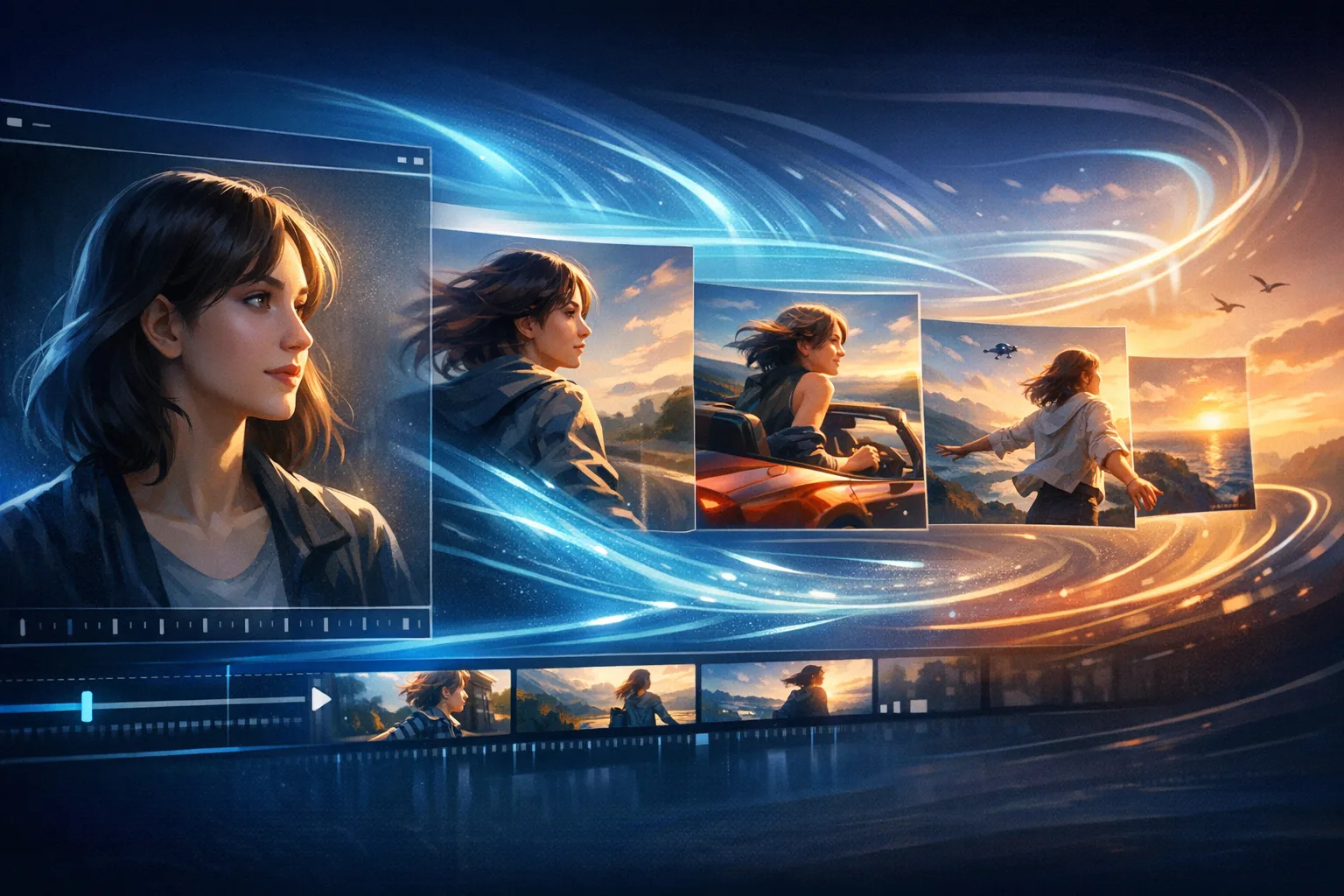
How to Convert Image to Video with AI - A Complete Guide
What Is AI Image-to-Video Generation?
AI image-to-video generation is a technology that takes a static image and animates it into a short video clip. Instead of manually animating each frame, AI models analyze the content of your image and predict natural motion — bringing portraits to life, making landscapes sway in the wind, or animating product shots with cinematic movement.
This technology has advanced dramatically in the past year. Models like Veo 3, Kling, and Wan can now produce high-quality, realistic video from a single photo in seconds.
Why Use AI to Animate Your Images?
There are several compelling reasons to add image-to-video to your workflow:
- Social media engagement: Videos consistently outperform static images in reach and interaction on platforms like TikTok, Instagram, and YouTube Shorts.
- Product marketing: Animated product shots look more dynamic and professional than still photography alone.
- Creative storytelling: Turn portrait photos, concept art, or illustrations into moving scenes.
- Cost efficiency: Generate video content without hiring videographers or motion designers.
Step-by-Step: How to Convert Image to Video
Step 1: Choose Your Source Image
Start with a high-quality image. The better your input, the better your output. Consider:
- Resolution: At least 1024×1024 pixels for best results
- Subject clarity: Clear foreground subjects with defined edges work best
- Composition: Well-framed images produce more natural motion
Step 2: Select the Right AI Model
Different models excel at different types of content:
| Model | Best For | Output Length |
|---|---|---|
| Veo 3 | Cinematic realism, natural scenes | 5–8 seconds |
| Kling 2.1 | Portrait animation, face motion | 5–10 seconds |
| Wan 2.5 | Stylized content, anime/art | 3–5 seconds |
| Hailuo 02 | Fast generation, general use | 3–6 seconds |
Step 3: Write an Effective Motion Prompt
The motion prompt guides how the AI animates your image. Be specific about the movement you want:
- "Camera slowly zooms in on the subject, gentle wind moves the hair"
- "The ocean waves crash rhythmically, clouds drift across the sky"
- "The character turns their head slightly and smiles"
Avoid vague prompts like "make it move" — the more detail you provide, the more control you have over the output.
Step 4: Adjust Generation Settings
Most platforms allow you to configure:
- Aspect ratio: 16:9 for landscape, 9:16 for vertical/reels, 1:1 for social posts
- Motion intensity: Low for subtle animation, high for dramatic movement
- Duration: Shorter clips render faster and use fewer credits
Step 5: Review and Iterate
Always preview your generation before finalizing. Check for:
- Unnatural facial distortion
- Background flickering
- Motion that contradicts physics (objects floating, hair moving the wrong direction)
If the result isn't right, adjust your prompt and regenerate. Most good creators do 2–3 iterations before landing on their final clip.
Tips for Better Results
Use reference motion: Some models allow you to upload a reference video to guide the motion style. This is especially useful for matching a specific cinematic look.
Keep subjects centered: AI models perform best when the main subject is clearly framed and not at the extreme edges of the image.
Avoid busy backgrounds: Complex, cluttered backgrounds can cause more artifacts. A clean or blurred background helps the model focus on your main subject.
Portrait photos work best: Human faces are one of the most-tested inputs for these models. Portrait-oriented shots of people animate with exceptional quality.
Common Use Cases
E-commerce Product Animation
Turn flat product photography into scroll-stopping video ads. A rotating 3D effect, a gentle shadow shift, or a close-up zoom can make your product listing stand out on any platform.
Social Content Creation
Creators use image-to-video to repurpose existing photo content. A single portrait session can yield dozens of unique animated clips for different platforms and formats.
AI Art Bring-to-Life
Artists who generate images with Midjourney, DALL-E, or Stable Diffusion can now extend their work into video — adding motion, atmosphere, and depth to static generations.
Historical Photo Animation
News outlets, historians, and content creators animate archival photographs to create more engaging documentary-style content that resonates with modern audiences.
Getting Started on Image to Video Maker
Our platform gives you access to the industry's leading AI video models — all in one place. You don't need to manage separate accounts or API keys.
- Upload your image on the Image to Video page
- Select your preferred AI model
- Write your motion prompt
- Generate and download your video
Credits are consumed only when you finalize your video, so you can preview freely before committing to a generation.
Frequently Asked Questions
How long does image-to-video generation take?
Generation typically takes between 30 seconds and 3 minutes depending on the model and server load. Faster models like Hailuo prioritize speed; cinematic models like Veo 3 may take longer but produce higher quality output.
What image formats are supported?
Most platforms support JPEG, PNG, and WebP. Some models also accept HEIC. For best results, use PNG for images with transparent backgrounds or JPEG for photographs.
Can I animate AI-generated images?
Yes. Images created with any AI generator — Midjourney, DALL-E, Stable Diffusion, Ideogram, and others — can be uploaded and animated just like photographs.
How many credits does image-to-video use?
Credit costs vary by model and video duration. Higher-quality models and longer clips consume more credits. You can view the credit cost for each generation before confirming.
Ready to bring your images to life? Start your first generation on Image to Video Maker today.